1. Click this link to go to the Pumble download page: https://pumble.com/apps
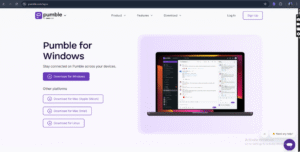
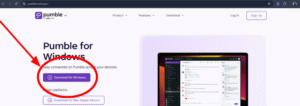
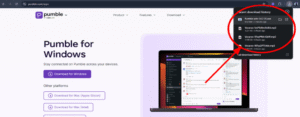
2. Click the download button under the title “Pumble for Windows”
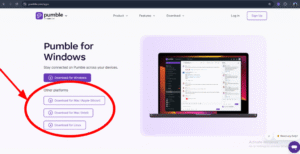
3. If you're using a different platform like Linux or Mac (Apple), click the download button under the "Other Platforms" section
4. Once the Pumble app finishes downloading, click the setup file to begin installing the app
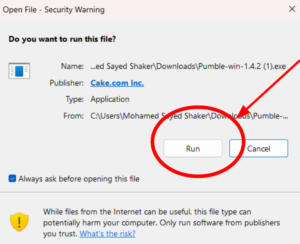
5. Click on the “Run” button to start the setup process
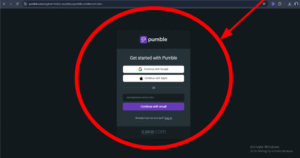
6. Click on “Sign Up” to create a new account and fill in your own PERSONAL CREDENTIALS
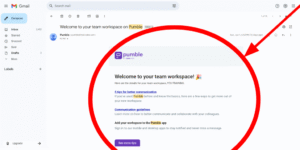
7. After you create and verify your account through your email address, you will be provided with a link to join the “Home Offer Today Training” Workspace.
8. An email will be sent on the email you signed up to confirm accepting the invitation for the “Home Offer Today Training” Workspace
9. Pin the Pumble app to your menu bar at the bottom of your desktop for easy access
10. This is how your Pumble app home page should look like
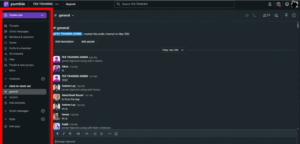
11. Next you will need to update your name and profile picture to your account
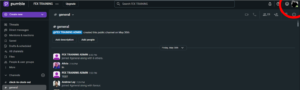
12. Click on your profile icon in the top right corner
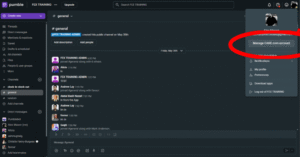
13. Click on the manage “CAKCE.com Account”
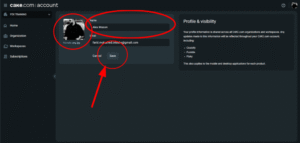
14. Click on edit to edit your name and profile picture
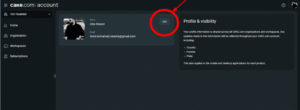
15. Change your name to your “First Name” & “Last Name” as well as your profile picture to an image that shows your face clearly. After you edit your name and profile picture, click on “Save” to finalize your edits
16. Make sure that Pumble is also downloaded and logged in on your Mobile Device
Setting Up WebWork Time Tracker:
1. Click this link to go to the WebWork Time Tracker download page: https://www.webwork-tracker.com/download
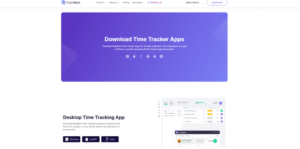
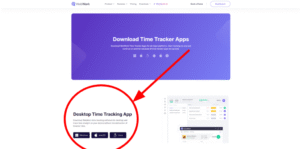
2. Under the title “Desktop Time Tracking App” click the download button according to your platform (Windows, Apple or Linux)
3. Once the WebWork Time Tracker app finishes downloading, click the setup file to begin installing the app
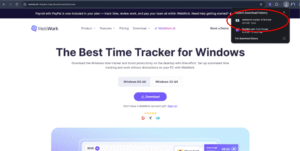
4. After the WebWork Time Tracker is Setup, create your account but DO NOT CREATE YOUR OWN WORKSPACE
5. After creating your account, you will be provided an invitation to our employee workspace:
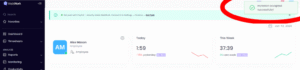
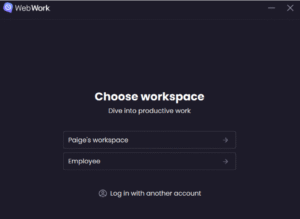
6. Once logged in on the App and after accepting the invitation, choose the “Employee” workspace
7. This is how your tracker should look like once you choose the workspace
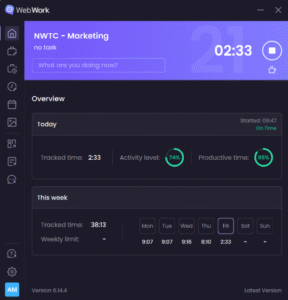
8. The tracker should be on at all times during your working hours and can only be turned off when you take a break or end your shift
9. Breaks are 1 hour per day and employees are allowed to take it whenever they please as long as it's not the first hour of the shift and the last hour of the shift
10. To take your break you click on the “Coffee Mug” icon under the “STOP” icon and it will automatically end and start tracking again once your break time is complete
Requesting Leaves and Time Off:
1. Leaves are requested through the WebWork Time Tracker app as well. First you need to click on the dashboard icon
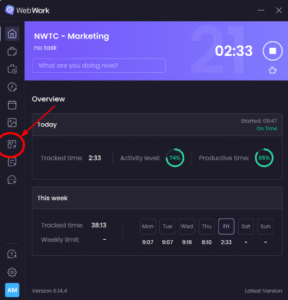
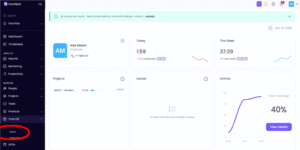
2. Once your dashboard is open, on the left menu bar under the heading “Manage” click on the subheading labeled “Leaves”
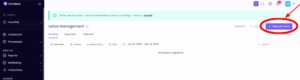
3. Click on “Request Leave” on the top right corner of the page
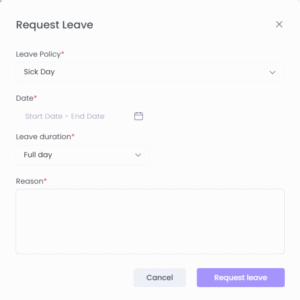
4. Fill out the request form stating your: Leave Policy, Date, Duration of Leave and Reason for Leave. After submitting the request, communicate to your team lead/hr to inform them with you requested leave in order to review
Training Platform:
1. Click this link to go to the Home Offer Today Training platform: https://learn.exactcashoffer.com/

2. Click on the “Sign Up” on the top right corner of the page to create your account using your OWN CREDENTIALS

3. After creating your account, go to your email account to verify your account. P.S: The verification email could be found either in: “Primary Inbox” or “Spam”
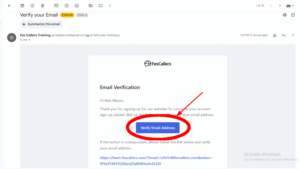
4. Once you verify your account, you will be provided access from the IT Team to the specified courses depending on the role you being trained for
Notes and Training Log:
1. Every trainee will be provided with their own copy of “Notes” Google Doc and “Training Log” Google Sheet.
2. Every trainee will be expected to fill their notes in the “Notes” Google Doc for EVERY video or document completed during their training period. They are expected to fill out their Name, Course, Date, Section, Video Title, General Notes, 3 Key Takeaways, Questions & Rating Training Comprehension (Level of Understanding)
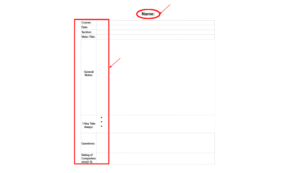
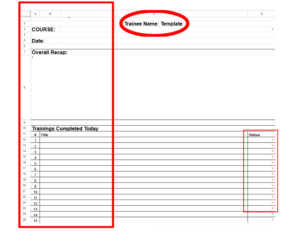
3. Every trainee will be expected to fill their notes in the “Training Log” Google Sheet at the end of EVERY day completed during their training period. They are expected to fill out their Name, Course, Date, Overall Recap (Recap of all the notes written throughout the day regarding the videos and documents completed in training), Title and Status of Every Video/Document Completed for the Day